 FerrisPing
Free and open source, for Windows 10 and 11
See which host dropped out, and when.
FerrisPing watches latency, packet loss, outages and route changes for several hosts at once. Each host gets a lane of its own, with live graphs on one shared time axis.
One .exe: no installer, no admin rights. macOS and Linux are planned.
It isn't code-signed yet: if Windows warns you, choose More info, then Run anyway. Release notes and SHA-256
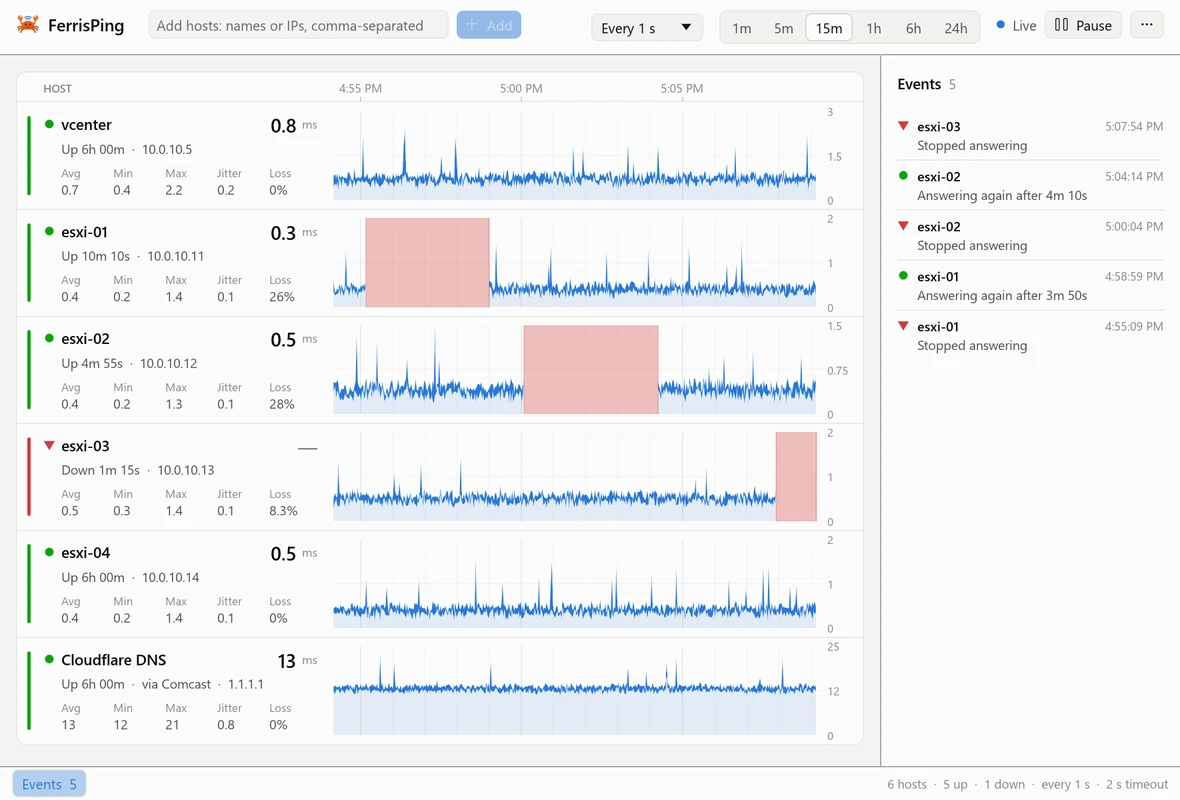
Made for watching hosts come and go
Like servers restarting one by one during a rolling update, or a flaky link you want to keep an eye on.
-
A lane per host
The current round trip, average, minimum, maximum, jitter and loss, with a graph of the last minute up to the last 24 hours. Drag or zoom a graph to look back, and double-click it to go back to live.
-
Outages logged
A host that misses 3 replies in a row is marked down. The events list notes when it went down, when it came back and how long it was out.
-
Continuous traceroute
Every hop on the way to a host, measured again and again (like mtr or pathping), so loss and delay can be pinned on one hop.
-
The network your traffic leaves through
Each lane names the first public network on its route (“via Comcast”), checks it every 30 seconds and logs a change. That's handy at a site with two ISPs. You can rename networks to what you call them.
-
Quick to fill
Add names or addresses separated by commas, ranges like
10.0.0.1-20, IPv6 addresses, and a label after an address (10.0.0.5 Office edge). -
No admin rights, no installer
One .exe that pings with the same Windows ICMP API as
ping.exeandtracert.exe. Light and dark themes, or follow Windows.
Trace a route, hop by hop
Hover a lane and click Route, or right-click it and choose Trace route. Each row is one hop: who answered, whose network it's on, the loss, and the last, average, best and worst round trips, with the latest results on the right.
Copy report copies the table as text, for a ticket or a chat. Right-click a hop to watch it in a lane of its own.
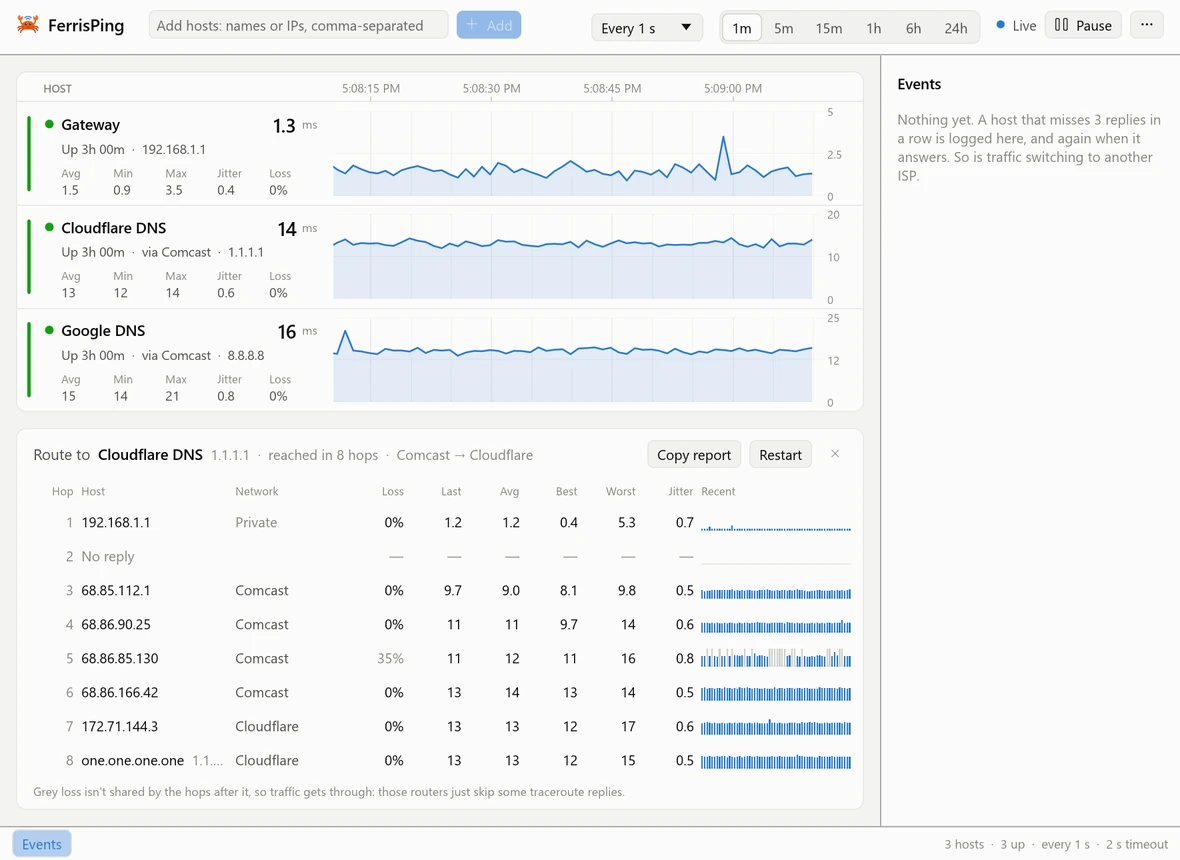
Reading the numbers
- Loss at a hop in the middle of a route isn't always real.
- Routers often limit how many traceroute replies they send. When the hops after one don't share its loss, traffic is getting through, so FerrisPing greys that loss out and says so.
- “via Comcast” is the first public network on the route.
- Usually that's the ISP your traffic goes out through, but a VPN, routers that don't answer, or a site with its own network number can make it something else. Treat a logged switch as a strong hint, not proof.
- Round trips under a millisecond are estimates.
- Windows reports whole milliseconds, so FerrisPing times each probe itself and takes off the measured timer overhead.
What FerrisPing sends over the network
- Pings (ICMP echo requests) to each host you add, at the interval you pick: every second unless you change it.
- For each host, a short traceroute every 30 seconds, up to 12 hops, to find the first public network on its way.
- While a route is open, a traceroute to that host every second.
- DNS lookups through your usual DNS server:
- the names of the hosts you add;
- reverse lookups for the names of routers on a route;
- for each public router address it sees, who owns it and what that network is called, from Team Cymru's IP-to-ASN mapping service. Those router addresses reach your DNS server and Team Cymru (see Team Cymru's privacy policy). Private addresses are never looked up.
Nothing else: no telemetry, no update checks, no accounts.
Pausing stops the pings and traceroutes.
Check routes and look up networks, under More options (⋯) at the top right, turns off the 30-second traceroutes and the Team Cymru lookups. Lanes then don't name the network their traffic leaves through, switches aren't logged, and an open route says “Lookups off” instead of naming its routers' networks. Router names are still looked up. The setting is on unless you turn it off.
The first time FerrisPing starts, it shows a summary of this list with the same choice, and doesn't check routes or look up networks until you've answered with OK. A one-off session started from the command line doesn't show the summary: until it has been answered, a session leaves the setting off unless you turn it on there.
Install
Download ferrisping.exe and run it. It runs on Windows 10 and 11. The latest release on GitHub has its release notes and SHA-256.
The exe isn't code-signed yet, so your browser may ask whether to keep it, and Windows SmartScreen may warn about it the first time: choose More info, then Run anyway.
It keeps your hosts, interval, time window, theme and network names in %APPDATA%\FerrisPing. Graphs and events are kept in memory only, so they start fresh each time. To uninstall FerrisPing, delete ferrisping.exe and that folder.
Command line
ferrisping [hosts...] [--interval 0.5] [--window 15m] [--theme dark|light|system] [--route <host>]Hosts given on the command line start a one-off session that isn't saved. --route <host> also opens that host's route.
To build it yourself, see Building from source.
Code signing policy
FerrisPing is applying to SignPath Foundation for free code signing. Once it's accepted, each release will be built from its GitHub repository by GitHub Actions and approved for signing by hand.
- Committers and reviewers: Chad Skinner
- Approvers: Chad Skinner
Privacy policy: What FerrisPing sends over the network
What's next
FerrisPing is new. Windows comes first, and macOS and Linux are next. After that: alerts (tray, sound, email), saved host groups and TCP port checks. There are no dates.
Found a bug, or have an idea? Open an issue on GitHub. Pull requests are welcome too. FerrisPing is a small project looked after in spare time, so answers may take a while.